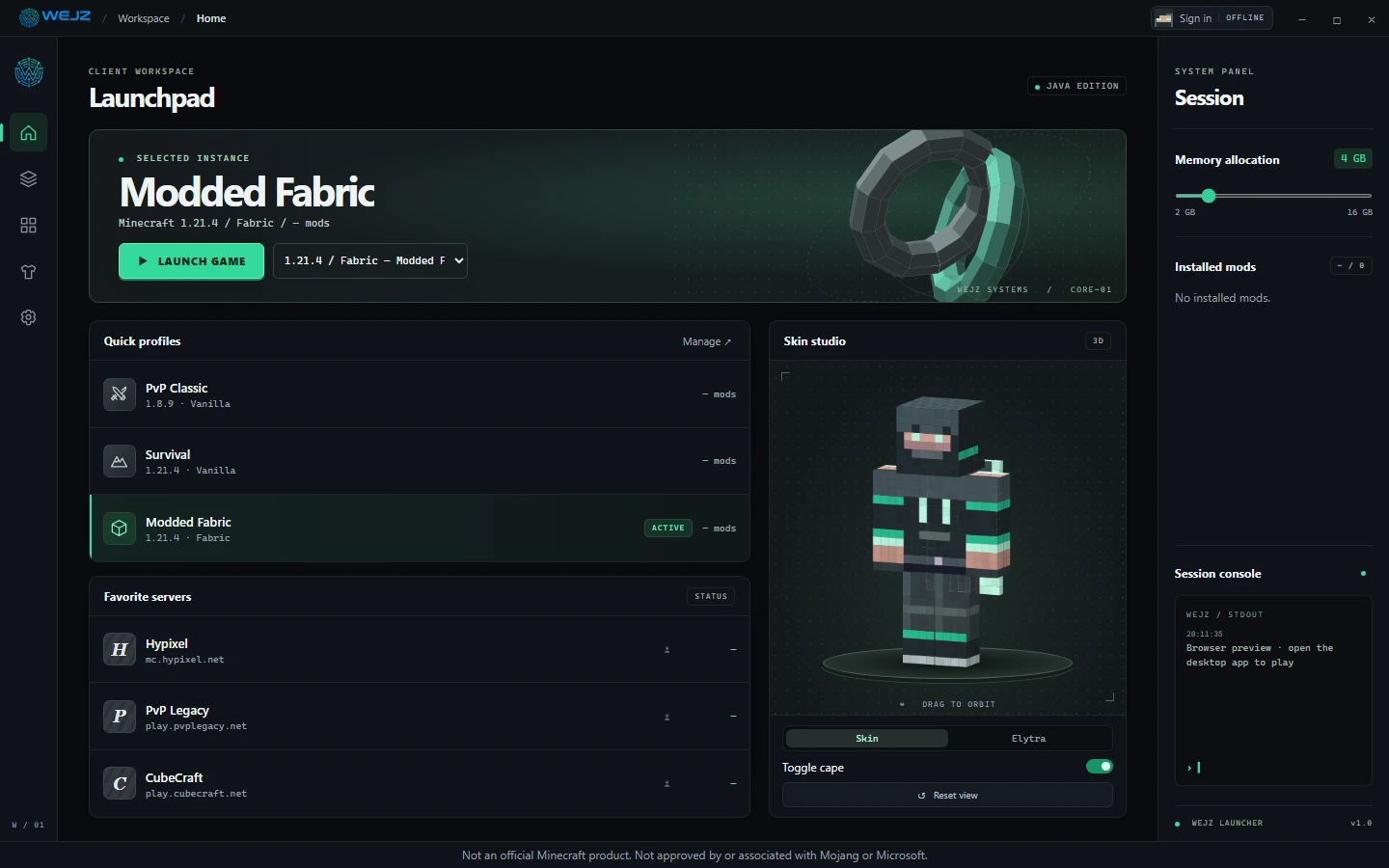
Your Java. WEJZ keeps your Minecraft: Java Edition instances, mods, and runtime settings together in one Windows app.
↓ Download for Windows x64 · EXE installer · {{SIZE}} MB
WEJZ / DESKTOP 01 — CLASSIC
Launchpad / Interface preview Sign-in availability WEJZ does not yet have Minecraft Services API approval. Microsoft sign-in for gameplay is not available in this release. A local dev profile can prepare an instance, but cannot start the game.
01 / INSIDE WEJZ
The workspace 01 / INSTANCES Separate your setups. Keep Vanilla, Fabric, and Forge profiles in separate folders, each with its own saves, options, and mods.
02 / MOD LIBRARY Manage your loadout. Find compatible Modrinth releases for your selected instance. Install dependencies and switch installed mods on or off.
03 / RUNTIME Tune each launch. Set memory, resolution, and JVM flags. Use the managed Java runtime and follow preparation in the session console.
02 / GET STARTED
Install on Windows Download the installer. Use the Windows x64 download above. Download SHA-256 checksum .Install WEJZ Launcher. Open the downloaded EXE and follow the setup wizard. Windows may warn about an unrecognized publisher if the installer is unsigned.Prepare your first instance. Open Settings → Account and create a dev profile. Choose an instance and select Prepare Instance while connected to the internet. Minecraft is not included.Installation help: support@wejz.app